Affiliate disclosure: PicksLab earns commissions on qualifying Amazon purchases at no extra cost to you.
TL;DR - Our top pick: The Sabrent USB-KCPD is our pick for two video-capable USB-C laptops sharing one HDMI monitor, keyboard and mouse. Its limits matter: two USB 2.0 peripheral ports, one display, and separate chargers needed for its optional 60W-per-laptop power delivery. For two independent Mac displays, consider the driver-dependent StarTech below instead.
The expensive mistake is buying a switch that has the right-looking ports but cannot deliver your screen arrangement. Two HDMI sockets do not guarantee two different desktops on a Mac, and a USB-C charging socket may be an input for a charger you still need to supply. Start with your laptops and displays, then choose the switch.
This is a manufacturer-documentation comparison, not a hands-on performance test. We checked exact models, manuals, software requirements and active new US Amazon offers on September 10, 2026. We have not measured switching speed, peripheral reliability or sleep/wake behavior. Marketplace seller and return terms can change; the Sabrent offer was sold by Store4PC, with Amazon shipping, rather than Amazon as seller.
Quick Comparison
| Pick | Best For | Main Exclusion |
|---|---|---|
| Sabrent USB-KCPD | One HDMI display and a keyboard/mouse | Not a fast USB hub or dual-monitor dock |
| IOGEAR GCS1602CC | One DisplayPort display and four USB peripherals | Full laptop charging is asymmetric |
| AV Access KD-E20 | Windows dual-HDMI desk with Ethernet | Mac external screens mirror; compatibility warning |
| Cable Matters 201085 | Windows HDMI-plus-DisplayPort desk with existing chargers | No laptop charging or EDID emulation |
| StarTech 129N-USBC-KVM-DOCK | Two independent Mac displays with approved software | DisplayLink drivers and Mac permissions required |
Match the Switch to Your Actual Desk
One monitor, two laptops: match HDMI or DisplayPort output to the monitor’s input. For the first four picks, both laptops need USB-C DisplayPort Alternate Mode, not merely a USB-C data or charging port. Check the laptop’s exact port specifications and supported display resolution before ordering. A charging-only cable will not replace a full-featured host cable.
Two different screens on Windows: the AV Access and Cable Matters models use MST to divide a native video connection between displays. Dual 4K at 60Hz depends on the laptop’s video capabilities, not just the switch label. The KD-E20 manual specifically requires DP 1.4 HBR3 with DSC for that combination; its lower-bandwidth configurations have lower limits.
Two different screens on a Mac: the two MST models below mirror the external screens. A Thunderbolt-compatible input does not change that behavior. The StarTech takes a different route: DisplayLink software sends USB graphics to its two DisplayPort outputs. That can supply independent displays on supported Macs, including models that natively support only one external display, but it brings software, permission and protected-video restrictions. It is not a native Thunderbolt graphics connection.
Already have separate video connections that work? You may not need a USB-C KVM. Our peripheral-only USB-switch comparison covers sharing a keyboard, mouse or webcam while using the monitor’s own input selector. For computers with separate HDMI/DisplayPort and USB connections, use the traditional KVM comparison. Neither requires buying a USB-C solution just for a cleaner-looking cable layout.
Display, Power, and Software Comparison
| Model | Monitor Outputs and Mac Behavior | Laptop Charging | Software and Control |
|---|---|---|---|
| Sabrent USB-KCPD | One HDMI, up to 4K/60Hz | Up to 60W each; supply separate USB-C chargers | Hardware button; native video |
| IOGEAR GCS1602CC | One DisplayPort, up to 4K/60Hz | Port 1 up to 100W with extra charger; port 2 at most 15W | Driver-free switching; wired remote |
| AV Access KD-E20 | Two HDMI, up to dual 4K/60Hz on qualifying Windows hosts; Mac mirrors | Up to 100W each with separate chargers; included adapter powers the switch | Hardware button or wired remote; MST video |
| Cable Matters 201085 | HDMI + DisplayPort; dual Windows output conditional on host; Mac mirrors | None | Hardware buttons or RF remote; optional Windows firmware repair |
| StarTech 129N-USBC-KVM-DOCK | Two DisplayPort, up to dual 4K/60Hz through DisplayLink | Up to 90W active / 45W standby; 180W adapter included | Windows/macOS display drivers; optional hotkey software |
Maximum charging wattage is a ceiling, not a promise of full-speed charging for every laptop. Check the laptop’s power requirement and supported USB-C charging profile. Display resolution also depends on the host, cables and monitor; none of these specifications proves trouble-free switching with every accessory.
1. Sabrent USB-KCPD
Buy Sabrent USB-KCPD on Amazon ->
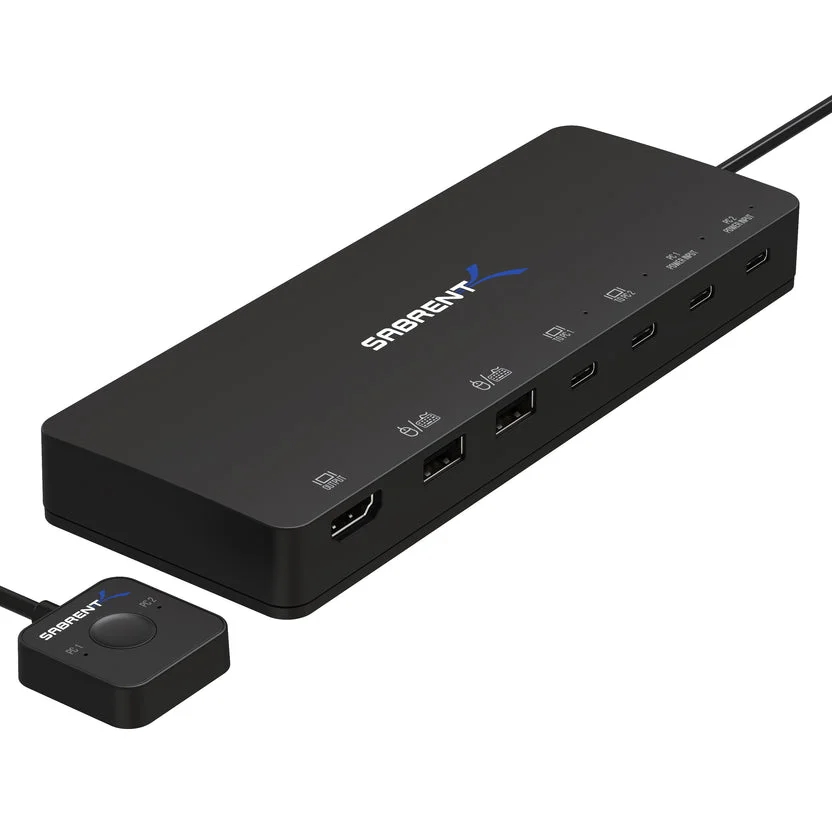 Image credit: Sabrent USB-KCPD.
Key specs: Video: one HDMI 2.0 output up to 4K/60Hz; Peripherals: two USB 2.0 ports; Charging: up to 60W per host with separate USB-C PD supplies.
Choose it for one HDMI monitor plus a keyboard and mouse. Its documented connections cover that modest setup without a larger docking station. Unlike a USB-C monitor switch, it connects directly to an HDMI display; the USB-C ports serve the laptops and power inputs. Sabrent includes two host cables and a mounting bracket, but laptop chargers are not included. See the official USB-KCPD manual before wiring it.
Skip it if you need fast external-drive transfers or two monitors. The two USB 2.0 ports are a meaningful limitation beside the faster, more numerous ports on IOGEAR. Routine switching is a physical-button operation with no configurator required; each laptop still needs native USB-C video support. The 60W charging limit may also be insufficient for a higher-power laptop under load.
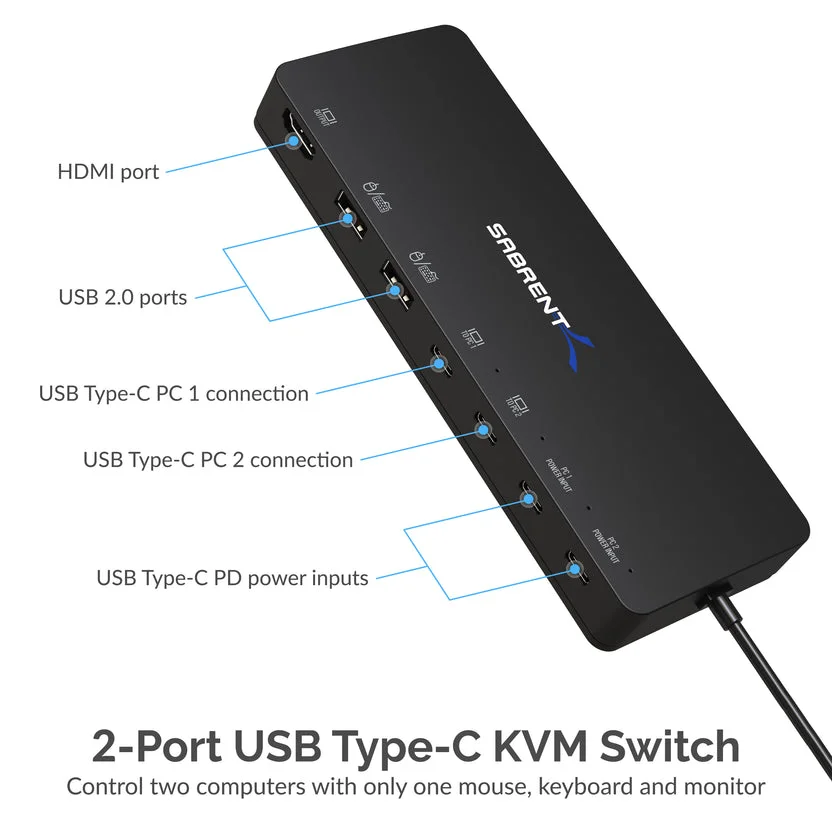 Port-detail image: Sabrent. The similarly shaped USB-C sockets have different roles; the monitor connects to HDMI.
2. IOGEAR GCS1602CC
Buy IOGEAR GCS1602CC on Amazon ->
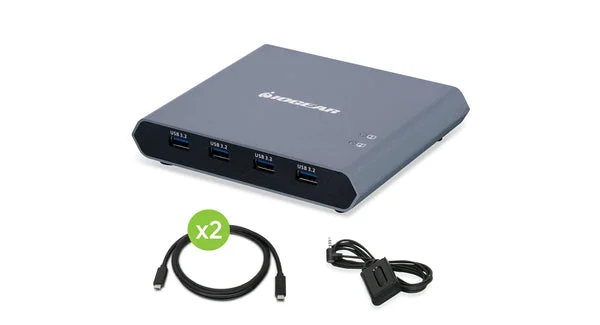 Image credit: IOGEAR GCS1602CC.
Key specs: Video: one DisplayPort output up to 3840 x 2160 at 60Hz; Peripherals: four USB-A ports at up to 5Gbps; Charging: port 1 up to 100W with separate charger, port 2 up to 5V/3A.
Choose it for one DisplayPort monitor and more than two USB peripherals. Four USB-A sockets leave room for devices beyond a keyboard and mouse. The supplied wired remote and two USB-C host cables make the connection plan straightforward. This is GCS1602CC, not GCS1602CCKIT: do not assume the separate kit’s DisplayPort-to-HDMI adapter is included.
Skip it if both laptops need high-power charging through the switch. Port 2’s maximum 15W is not equivalent to port 1’s optional 100W, and the supplied switch adapter does not eliminate the separate USB-C charger requirement. Normal Windows/Mac operation needs no application, but both hosts require DP Alt Mode. The official Documents and Drivers section provides its quick-start guide and a Windows firmware updater; firmware maintenance is distinct from ordinary driver-free switching.
3. AV Access KD-E20
Buy AV Access KD-E20 on Amazon ->
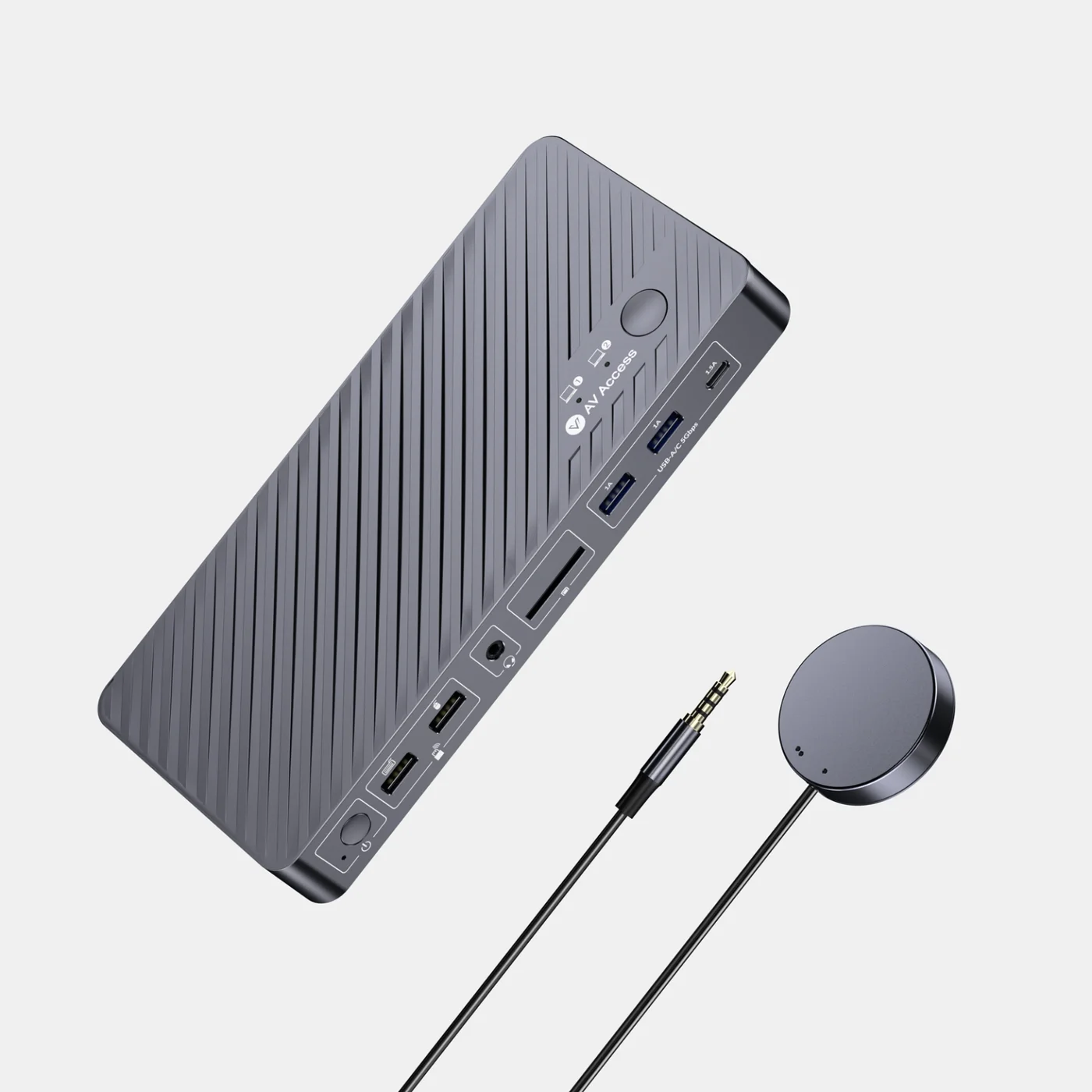 Image credit: AV Access KD-E20.
Key specs: Video: two HDMI outputs, dual 4K/60Hz with DP 1.4 HBR3 and DSC on Windows; Peripherals: five USB-A ports and one data-only USB-C port; Network: Gigabit Ethernet for both laptops; Charging: up to 100W per host with separate chargers.
Choose it for a Windows-first dual-HDMI desk that also needs shared USB accessories and wired networking. Its network connection can remain available to both laptops while the selected laptop gets the monitors and shared peripherals. Three USB-A ports support USB 3.0, while two USB 2.0 ports suit keyboard/mouse connections. The switch’s power adapter, two host cables and wired remote are included; the two laptop charging supplies are not.
Skip it for two independent Mac screens or an unconfirmed laptop video configuration. On our check date, Amazon flagged this listing as frequently returned because of compatibility issues. That is a reason to confirm the exact host specifications and return terms, not to assume its dual-monitor claim fits any USB-C laptop. The KD-E20 documentation establishes native MST video and hardware switching, with no DisplayLink app. AV Access advertises EDID emulation, but we have not verified window-position retention or wake-up behavior across machines.
4. Cable Matters 201085
Buy Cable Matters 201085 on Amazon ->
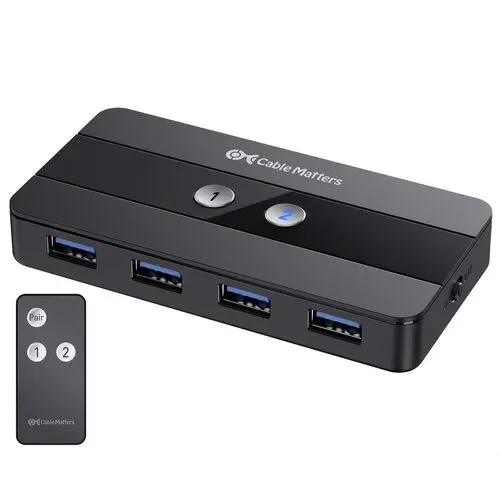 Image credit: Cable Matters 201085.
Key specs: Video: one HDMI and one DisplayPort output; Peripherals: four USB 3.0 ports at up to 5Gbps; Laptop charging: none; Switching: on-unit buttons and included RF remote.
Choose it when your Windows desk already has HDMI and DisplayPort monitors and separate laptop charging. Its two video outputs can provide extended displays on a compatible Windows host; the manufacturer’s dual-4K/60Hz claim depends on DP 1.4/DSC support. Mac external screens mirror. This is model 201085, not a similarly named USB-C data switch or a charging dock.
Skip it if laptop charging or EDID emulation is essential. The product documentation explicitly excludes both, and it is not a VRR recommendation. Keep your chargers connected separately and expect that display layouts may need adjustment after switching. Native video needs no DisplayLink software. Cable Matters’ official 201085 firmware instructions address an older no-display-after-switching problem using a Windows administrative updater; that page says units bought after October 29, 2022 already contain that fix. Do not install firmware merely because a download exists. Use the model-specific troubleshooting guide for the applicable symptom.
5. StarTech 129N-USBC-KVM-DOCK
Buy StarTech 129N-USBC-KVM-DOCK on Amazon ->
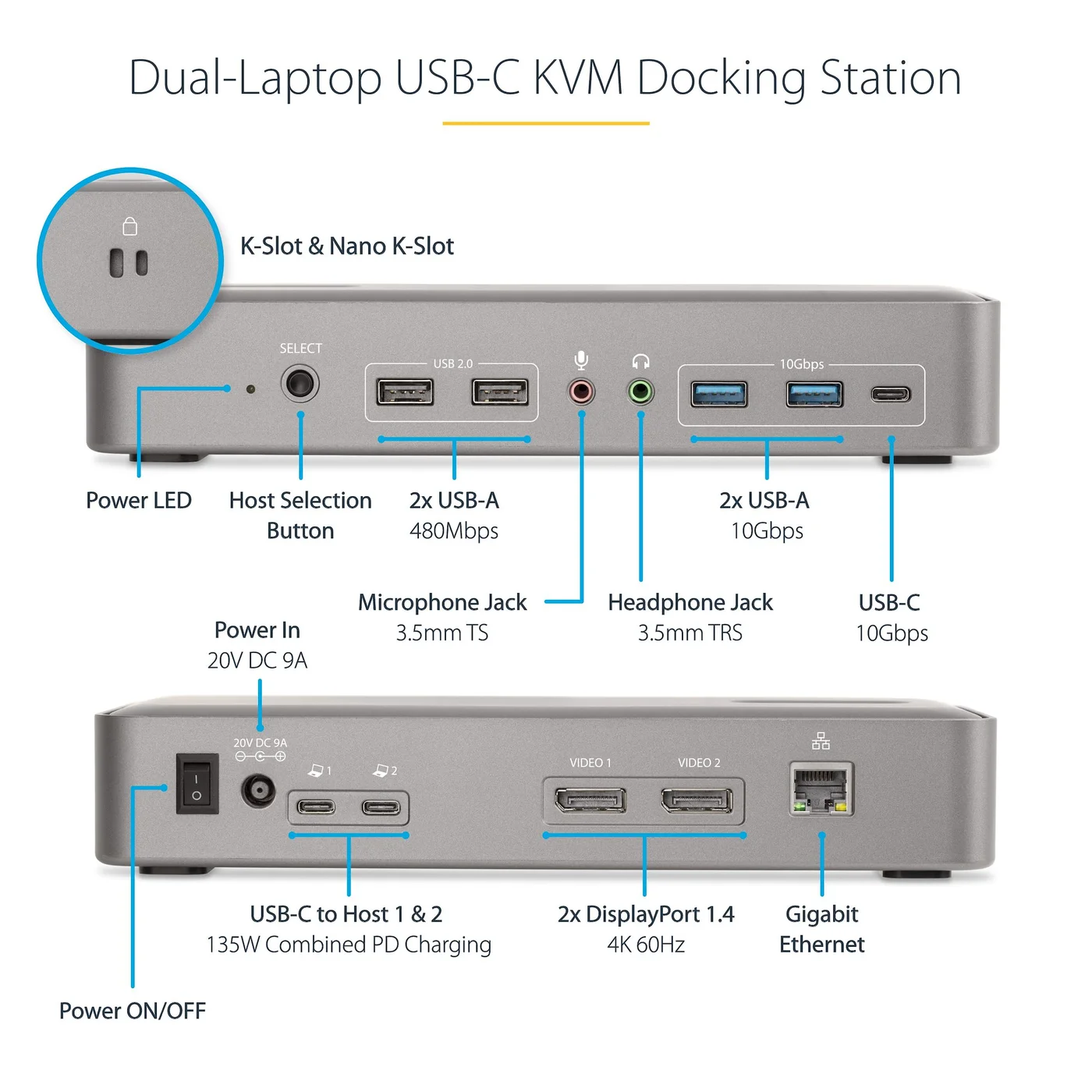 Port-detail image: StarTech 129N-USBC-KVM-DOCK.
Key specs: Graphics: DisplayLink DL-6950 with two DisplayPort outputs up to dual 4K/60Hz; Peripherals: two USB 2.0, two 10Gbps USB-A and one 10Gbps USB-C; Charging: up to 90W active and 45W standby; Included power supply: 180W.
Choose it for two independent Mac displays when installing DisplayLink software is acceptable. It avoids the native MST-mirroring limitation through USB graphics, rather than claiming to unlock extra native video streams. Both laptop cables and the charging supply are included. The StarTech datasheet identifies the chipset and included equipment, so there is less accessory ambiguity than with separately powered charging inputs.
Skip it if your work computer blocks display software or you need a native-video setup for protected media. Install the appropriate Windows/macOS driver from the exact model’s Drivers and Downloads; Mac users can also reach official DisplayLink Manager downloads and the first-time permission guide. macOS requires Screen Recording permission, and protected-video playback can be restricted with DisplayLink connected. Check the download’s supported OS versions and obtain workplace approval before buying. Physical switching works without the optional StarTech.com Link hotkey utility, which is offered for Windows/Mac; the display driver is a separate requirement.
Who Should Buy What
- One HDMI screen, basic peripherals: Sabrent USB-KCPD, provided both hosts have USB-C video and the USB 2.0 ports are sufficient.
- One DisplayPort screen, four USB devices: IOGEAR GCS1602CC, with separate charging planned for the second laptop.
- Windows dual HDMI plus Ethernet: AV Access KD-E20, after checking DP/DSC capability and the compatibility caveat.
- Windows mixed HDMI/DisplayPort without charging needs: Cable Matters 201085, accepting its lack of EDID emulation.
- Two independent Mac screens with software approval: StarTech 129N-USBC-KVM-DOCK, not an MST-only dock.
FAQ
Does any USB-C port work with a USB-C KVM?
No. Sabrent, IOGEAR, AV Access and Cable Matters here need a host port capable of native DisplayPort Alternate Mode. A data-only port will not supply their video. The StarTech uses DisplayLink USB graphics and its driver instead, but still has host, OS and cable requirements. Match the exact product’s requirements to both computers; charging support and video support are separate capabilities.
Can a Mac and Windows laptop share two different external displays?
They can with the appropriate arrangement, but not through every dual-output USB-C switch. The KD-E20 and 201085 use MST and mirror their external screens on macOS. The StarTech provides a DisplayLink-based alternative with software requirements. A native multi-display setup outside this shortlist must respect the exact Mac’s display limits and the dock’s connection method; an adapter or a Thunderbolt label alone does not remove those limits.
Will a charging KVM replace both laptop power adapters?
Only if it includes a suitable supply and provides enough power to each host. Sabrent and AV Access need separately supplied USB-C laptop chargers. IOGEAR’s high-power passthrough applies to port 1, not equally to both. Cable Matters does not charge either laptop. StarTech includes its supply, but the standby laptop receives at most 45W, so high-load requirements still matter.
Will switching preserve every window and USB connection?
Do not assume so. Video and USB devices can disconnect and reconnect when the active host changes. EDID emulation can address some display-detection behavior, but it is not proof that every application, docked laptop or sleep state will behave identically. Save work, safely eject shared storage before switching, and verify your actual display and peripheral setup within the seller’s return period.
Bottom Line
Buy for the desk you actually have. For two video-capable USB-C laptops and one HDMI monitor, the Sabrent USB-KCPD covers the basic job with clearly limited USB and charging capabilities. For dual-screen Mac work, start with software permission and the DisplayLink tradeoff, not the number of sockets in a product photo.
This article contains affiliate links. PicksLab may earn a small commission at no extra cost to you. Our recommendations are based on the review method described in this article.