Affiliate disclosure: PicksLab earns commissions on qualifying Amazon purchases, at no extra cost to you.
TL;DR - Our top pick: The Amazon Fire HD 8 Kids, 32GB is our first choice for a younger child’s travel tablet because its bumper case, child profiles, included content period, and two-year worry-free guarantee come together in one package. Choose a general Android tablet or iPad instead if a particular school app or game is non-negotiable.
The best kids tablet for travel is the one that plays your child’s downloaded content without airport Wi-Fi and lets you control purchases without a daily argument. Screen size matters, but the app store, account setup, and protection against drops matter more. These five picks cover four brands and different family situations, not five slightly different storage upgrades.
How we selected: This is a research-based comparison, not a hands-on durability or battery test. We checked manufacturer specifications, parental-control documentation, and live US Amazon purchase options on September 7, 2026. Battery figures below are manufacturer claims under different conditions, not directly comparable test results. Cases, subscriptions, and seller bundles refer to the linked configurations.
Best Kids Tablet: Quick Comparison
| Pick | Best For | The Important Difference |
|---|---|---|
| Amazon Fire HD 8 Kids, 32GB | Younger children, especially ages 3-7 | Thick case and a managed content bundle; no Google Play |
| Amazon Fire HD 8 Kids Pro, 64GB | Ages 6-12 staying in Amazon’s ecosystem | Slimmer case and more storage; still a Fire tablet |
| Apple iPad mini A17 Pro, 128GB | Older kids using iPad apps or drawing tools | Compact premium hardware; case and Pencil cost extra |
| Samsung Galaxy Tab A9+, 64GB book-cover bundle | Families needing Google Play and a larger display | Samsung Kids plus an ordinary Android environment |
| Lenovo Tab M11, 128GB folio bundle | Larger-screen downloads and light school use | More built-in storage than the linked Samsung configuration |
Hardware and Family Features
| Model | Display | Storage / Expansion | Battery Claim | Case and Controls |
|---|---|---|---|---|
| Fire HD 8 Kids | 8-inch, 1280 x 800 | 32GB; microSD up to 1TB | Up to 13 hours mixed use | Bumper and stand; Parent Dashboard |
| Fire HD 8 Kids Pro | 8-inch, 1280 x 800 | 64GB; microSD up to 1TB | Up to 13 hours mixed use | Slim case; Parent Dashboard |
| iPad mini A17 Pro | 8.3-inch, 2266 x 1488 | 128GB; no microSD | Up to 10 hours Wi-Fi browsing or video | Case separate; Screen Time / Family Sharing |
| Galaxy Tab A9+ | 11-inch, 1920 x 1200, up to 90Hz | 64GB; microSD up to 1TB | 7,040mAh battery; not a runtime comparison | Seller’s book-cover bundle; Samsung Kids / Family Link |
| Tab M11 | 11-inch, 1920 x 1200, 90Hz | 128GB; microSD up to 1TB | Up to 10 hours video playback | Linked folio bundle; Google Family Link |
Subscription and protection check: The linked blue Fire Kids listing includes one year of Kids+. The Kids Pro listing describes six-month or one-year options, so check the selected subscription option before checkout. Amazon currently states automatic renewal starting at 7.99 USD per month plus tax; eligibility and the selected offer determine the charge. Both include a two-year worry-free guarantee subject to Amazon’s terms. The other three tablets do not include that same child-damage replacement promise or a comparable all-in-one paid content library. Their ordinary warranties are not accidental-damage insurance. See our Amazon memberships comparison before paying for overlapping subscriptions.
1. Amazon Fire HD 8 Kids, 32GB
Buy Amazon Fire HD 8 Kids on Amazon ->
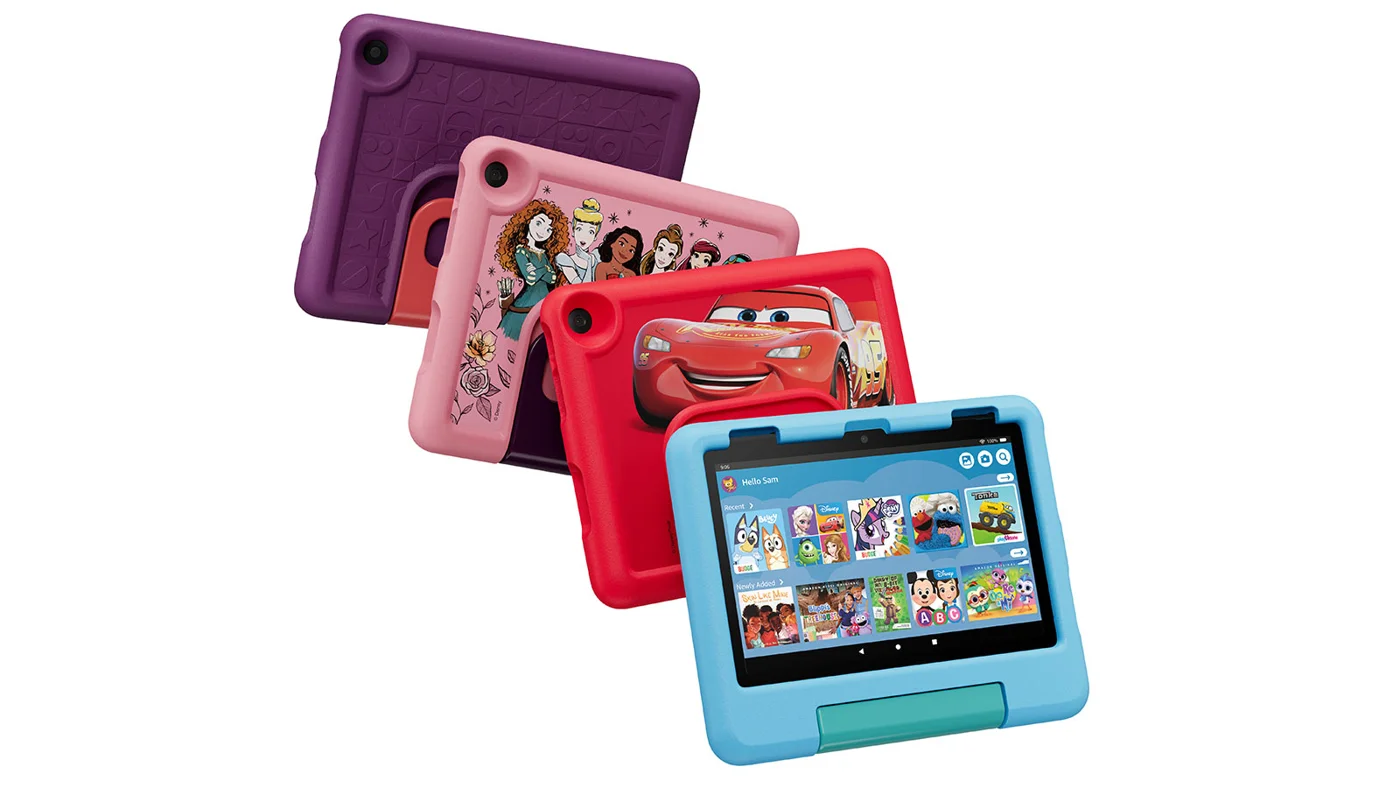 Manufacturer image: Amazon. Blue is the linked model; the other finishes are not included.
Key specs: Display: 8-inch, 1280 x 800; Memory: 3GB RAM; Storage: 32GB plus microSD up to 1TB; Battery: up to 13 hours; Included protection: bumper case and two-year worry-free guarantee.
This is the practical starting point for a younger child who mainly wants stories, videos, and a parent-approved selection of games. The thick case has a stand/handle, so you do not immediately need to shop for a separate cover. Amazon positions it for ages 3-7; that describes the interface and case audience, not a recommendation about when a child should start using screens.
The real benefit is the managed experience. Parent Dashboard lets you set limits and choose content, while Kids+ provides an initial library. The hardware’s 32GB is much less generous once the operating system and apps take their share. A memory card helps with compatible downloads, but it does not turn all apps into expandable-storage apps.
Skip it if a specific Google Play app is essential. Amazon says Google Play is not supported on Fire tablets. Check the Fire app catalog before buying rather than assuming every Android app works. We would not make unofficial app-store installation part of a child’s dependable travel setup. Amazon’s current buying guide explains the Kids range; the linked product’s technical table identifies this configuration.
2. Amazon Fire HD 8 Kids Pro, 64GB
Buy Amazon Fire HD 8 Kids Pro on Amazon ->
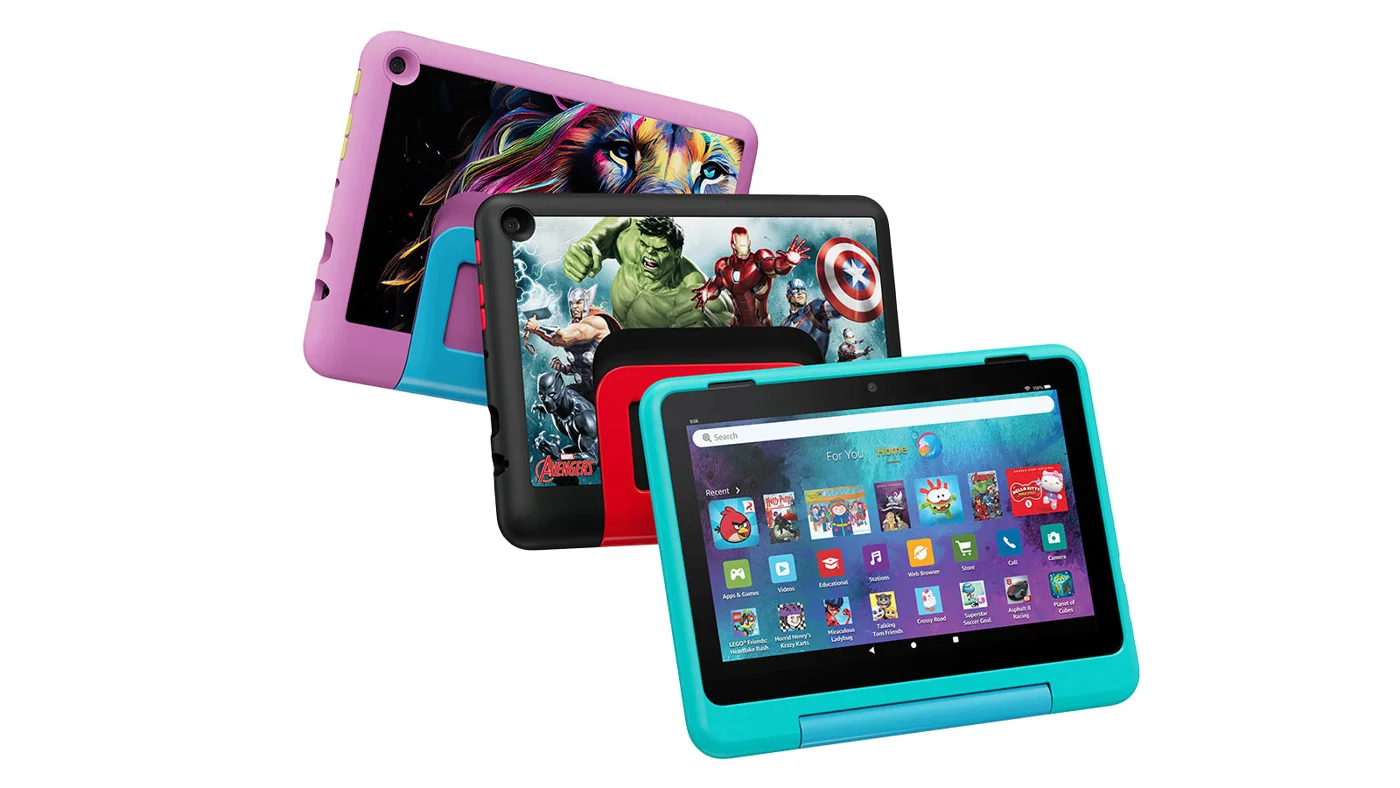 Manufacturer image: Amazon. Hello Teal is the linked finish.
Key specs: Display: 8-inch, 1280 x 800; Storage: 64GB plus microSD up to 1TB; Processor: hexa-core, 2.0GHz; Battery: up to 13 hours; Target age: 6-12; Included case: slim protective case.
Kids Pro makes sense when a child has outgrown a chunky bumper but you still want Amazon’s parental controls. It offers a more grown-up interface and parent-approved requests for additional content. The selected 64GB configuration also leaves more room for a trip’s downloads than our 32GB top pick.
Do not read “Pro” as a leap into high-performance gaming. These two Fire models share the same display class and processor specification. You are choosing an age-appropriate presentation, a different case, and more storage, not buying an iPad-class performance upgrade. The manufacturer’s Fire HD 8 overview and current listing distinguish the available memory and storage configurations.
The same app-store restriction remains. Choose this for a child happy with the Amazon ecosystem; skip it if they are already asking for apps that are unavailable there. Before departure, test downloads inside the child’s profile, not just the adult profile where you installed them.
3. Apple iPad mini A17 Pro, 128GB
Buy Apple iPad mini A17 Pro on Amazon ->
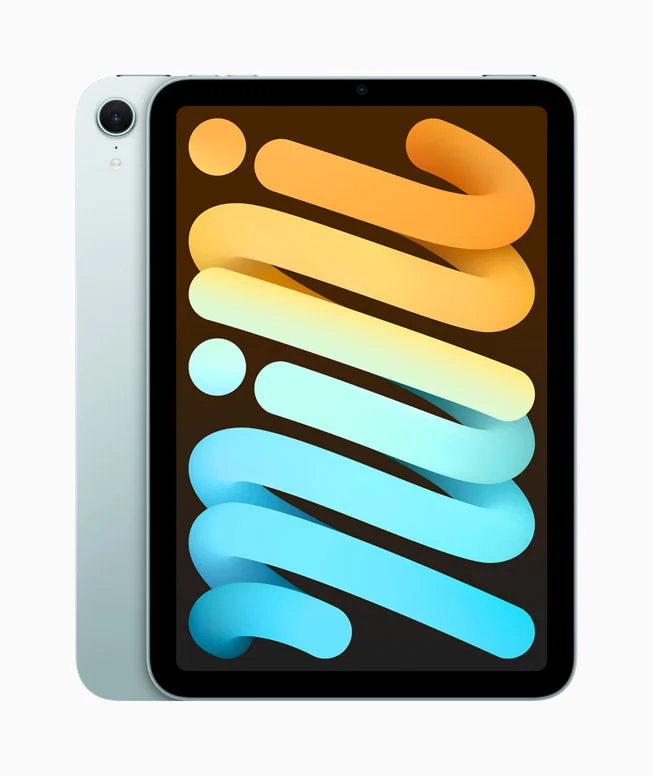 Manufacturer image: Apple Newsroom.
Key specs: Display: 8.3-inch, 2266 x 1488; Chip: A17 Pro; Storage: 128GB, not expandable by microSD; Wi-Fi: 6E; Weight: 293g for Wi-Fi model; Pencil support: Apple Pencil Pro and USB-C Pencil, sold separately.
The iPad mini is the premium choice for an older child who actually needs iPad apps, drawing tools, or a compact device beyond video playback. Its small footprint fits a travel bag without the awkwardness of an 11-inch tablet, while 128GB gives you more built-in room than either Fire configuration. Apple’s technical specifications list its connectivity, display, and accessory support.
The catch is the complete purchase, not just the tablet. You need a protective case, may need a Pencil, and must configure a child account and restrictions. Apple supports Screen Time requests and Ask to Buy, but those controls do not arrive as a preconfigured kids’ bundle. Downloaded subscriptions and paid apps are separate expenses.
Skip the mini for a child who only watches a few downloaded cartoons. Its extra capability is hard to justify for that job, and the smaller display is less comfortable for side-by-side schoolwork. Families already sharing Apple purchases have a stronger reason to choose it than families starting from scratch.
4. Samsung Galaxy Tab A9+, 64GB Book-Cover Bundle
Buy Samsung Galaxy Tab A9+ on Amazon ->
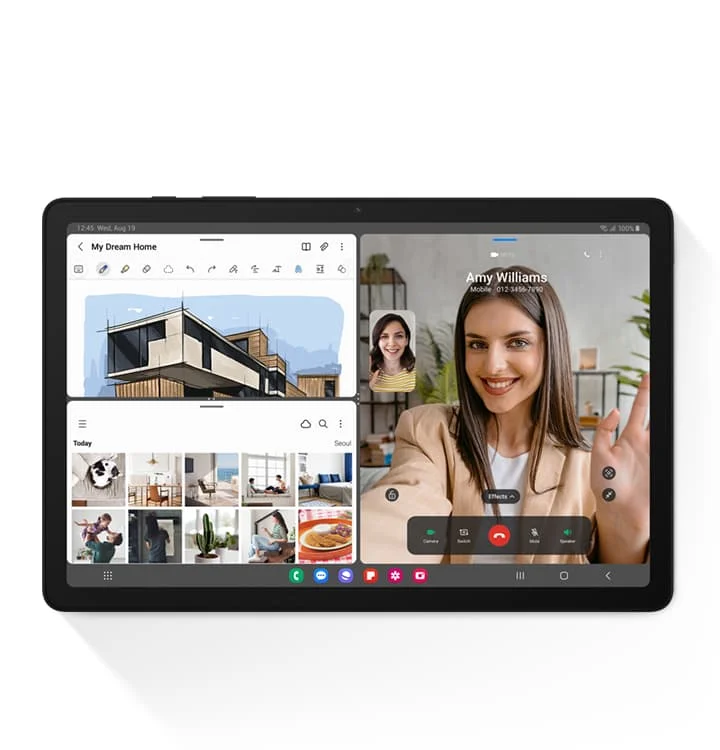 Manufacturer image: Samsung. Tablet shown; seller-bundled cover and accessories are not pictured.
Key specs: Display: 11-inch, 1920 x 1200, up to 90Hz; Memory: 4GB RAM; Storage: 64GB plus microSD up to 1TB; Battery capacity: 7,040mAh; Audio: four speakers and 3.5mm headphone connection.
The A9+ is the larger-screen option for families who need Google Play rather than Amazon’s app selection. It suits a child moving between media and light school tasks, particularly when the household already uses Samsung devices. The display and speaker arrangement are useful for a tablet sitting on a table, though headphones are the considerate choice in shared travel spaces.
Samsung Kids provides a child-facing environment, and Family Link provides account-level supervision. Neither removes the need to review app permissions and purchase settings. Samsung’s specification sheet confirms the hardware; the linked Amazon offer is a third-party book-cover bundle, not a special rugged Kids Edition.
Buy this older model only at a worthwhile discount. An accessory bundle is not automatically good value, and a folio is not a thick child-proof bumper. Compare its delivered price with Samsung’s current generation before ordering. Skip it if you need a small handheld tablet, stronger gaming performance, or a ready-made damage-replacement package.
5. Lenovo Tab M11, 128GB Folio Bundle
Buy Lenovo Tab M11 on Amazon ->
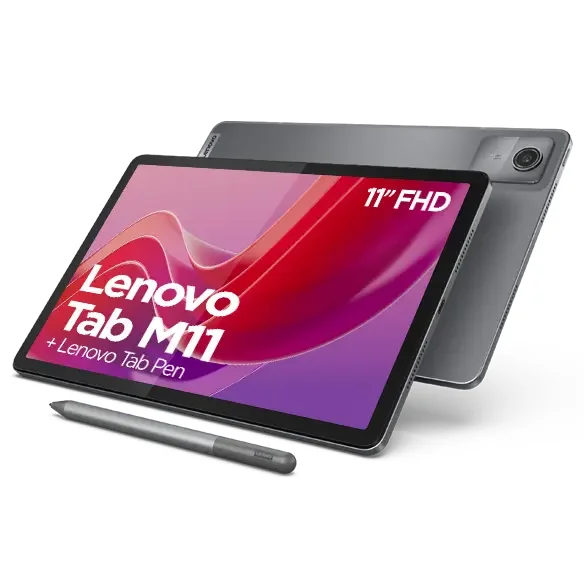 Manufacturer image: Lenovo.
Key specs: Display: 11-inch, 1920 x 1200, 90Hz; Processor: MediaTek Helio G88; Memory: 4GB RAM; Storage: 128GB eMMC plus microSD up to 1TB; Battery capacity: 7,040mAh; Audio: four speakers and 3.5mm jack.
The M11 gives you a larger screen and 128GB of built-in storage without choosing a Fire device. That is useful when multiple downloaded apps and episodes need to stay on the tablet itself. The linked package includes a folio; do not assume a pen is included just because another M11 bundle or manufacturer image shows one.
Use a supervised child Google account and Family Link’s screen-time settings rather than handing over an unrestricted adult account. Lenovo’s platform specifications identify the storage as eMMC, despite some retailer titles calling it an SSD. That distinction helps set expectations for an entry-level Android tablet.
The reason to choose it is storage and a larger display, not premium processing power. This is another older model: compare the full delivered price, including shipping, and confirm the regional warranty with the seller. Skip it for demanding games or if the price approaches a newer, better-supported tablet. For a younger child, a folio is also less reassuring than the Fire Kids bumper.
Before the Trip: Make Offline Really Mean Offline
- Check the exact apps first. Search the device’s supported app store and confirm the required account and subscription. A familiar app name on a different platform is not proof of identical features.
- Download through the child’s account or profile. Open every must-have game and video once while connected. Some games need extra files after installation; streaming downloads can expire.
- Test in airplane mode. Disconnect Wi-Fi and play the actual content. Do this at home while you can fix a missing download or login.
- Set limits and purchase approval. Keep the parent PIN private. Remote changes may need internet, so do not rely on adjusting everything from your phone mid-flight.
- Pack charging and listening gear. The iPad mini needs Bluetooth or compatible USB-C audio; the other listed tablets have wired headphone connections. For overseas charging, check the charger label and our international travel-adapter guide.
Available storage is lower than advertised capacity on every model. Treat microSD as additional room for supported files, not a guarantee that every app or video service will use it. Our travel-tech checklist covers other small items worth considering before packing.
Who Should Buy What
- For a younger child’s first travel bundle: choose the Fire HD 8 Kids after confirming its app catalog fits.
- For an older child staying with Amazon: choose the 64GB Fire HD 8 Kids Pro.
- For compact iPad apps and drawing: choose the iPad mini A17 Pro, budgeting separately for protection.
- For a larger Google Play tablet: compare the Samsung A9+ bundle with the 128GB Lenovo M11, and buy only when the delivered price makes sense against newer models.
FAQ
Can a kids tablet work without Wi-Fi?
Yes, when its apps and content support offline use and you have downloaded them beforehand. Streaming, multiplayer games, account verification, remote parental changes, and some subscription checks still need internet. Test the child’s actual profile in airplane mode before leaving.
Is Amazon Kids+ required to use a Fire Kids tablet?
No. The hardware and free Amazon Kids parental-control features are separate from the paid Kids+ content subscription. Canceling Kids+ removes access to its subscription library, not ownership of the tablet. Review what remains available before canceling, and note the renewal date of any included period.
Is an 8-inch or 11-inch tablet better for travel?
An 8-inch class tablet is easier to hold and pack; an 11-inch model provides more room for reading, school tasks, and tabletop viewing. Check the dimensions with the case attached. A larger screen is not automatically a better choice for a small child or a cramped aircraft seat.
Will parental controls block every unsuitable app or video?
No. Controls help you restrict access, spending, and time, but settings and content behavior vary by service. Use a child account, approve apps deliberately, protect the parent PIN, and periodically review what the child can actually open. No tablet is a substitute for supervision.
Bottom Line
For a younger child with straightforward travel needs, start with the Fire HD 8 Kids. Its case and managed experience solve more practical problems than a longer specification sheet. For older children, choose the app ecosystem first and then the hardware. Most importantly, make the offline test before departure, not after the cabin door closes.
This article contains affiliate links. PicksLab may earn a small commission at no extra cost to you. Our recommendations are based on the review method described in this article.